
QR Code File Transfer: Connect Devices and Fix Scan Problems
Understand what a session QR code contains, join without scanning, and separate QR recognition problems from upload failures.
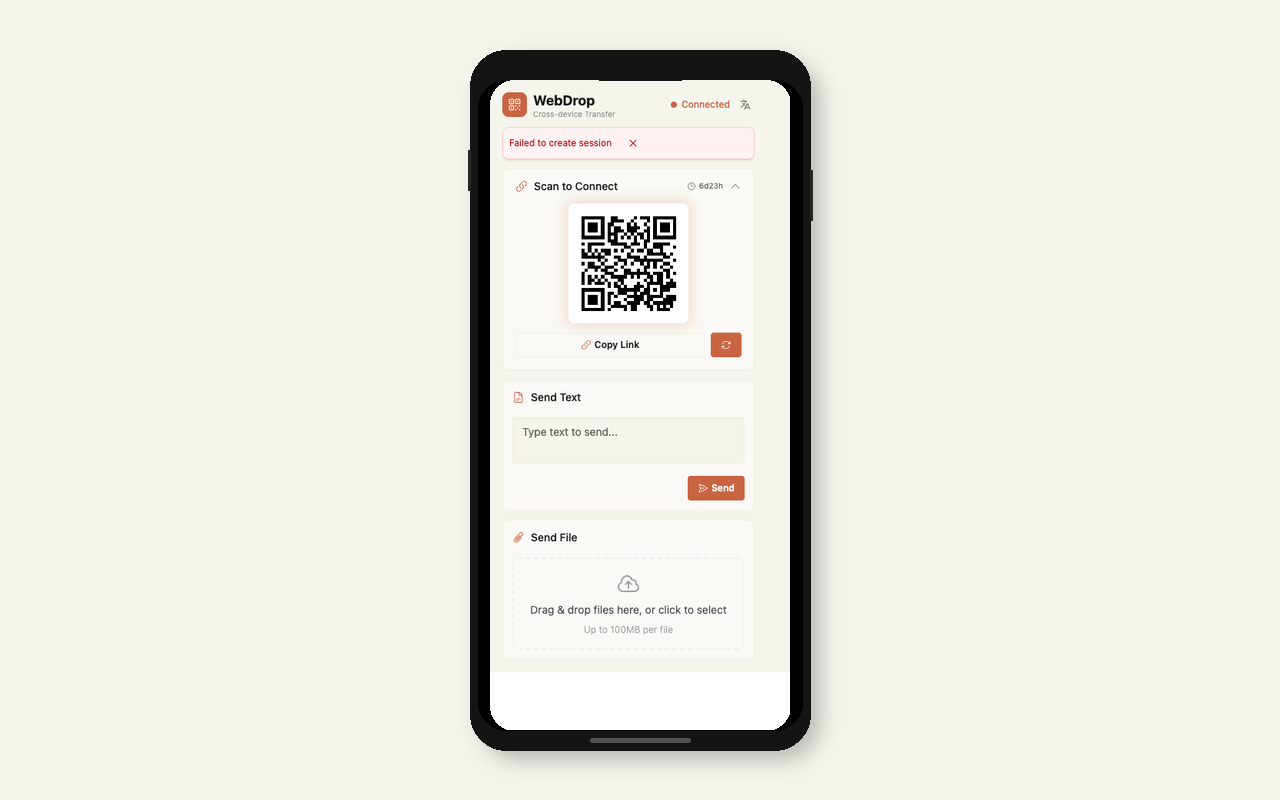
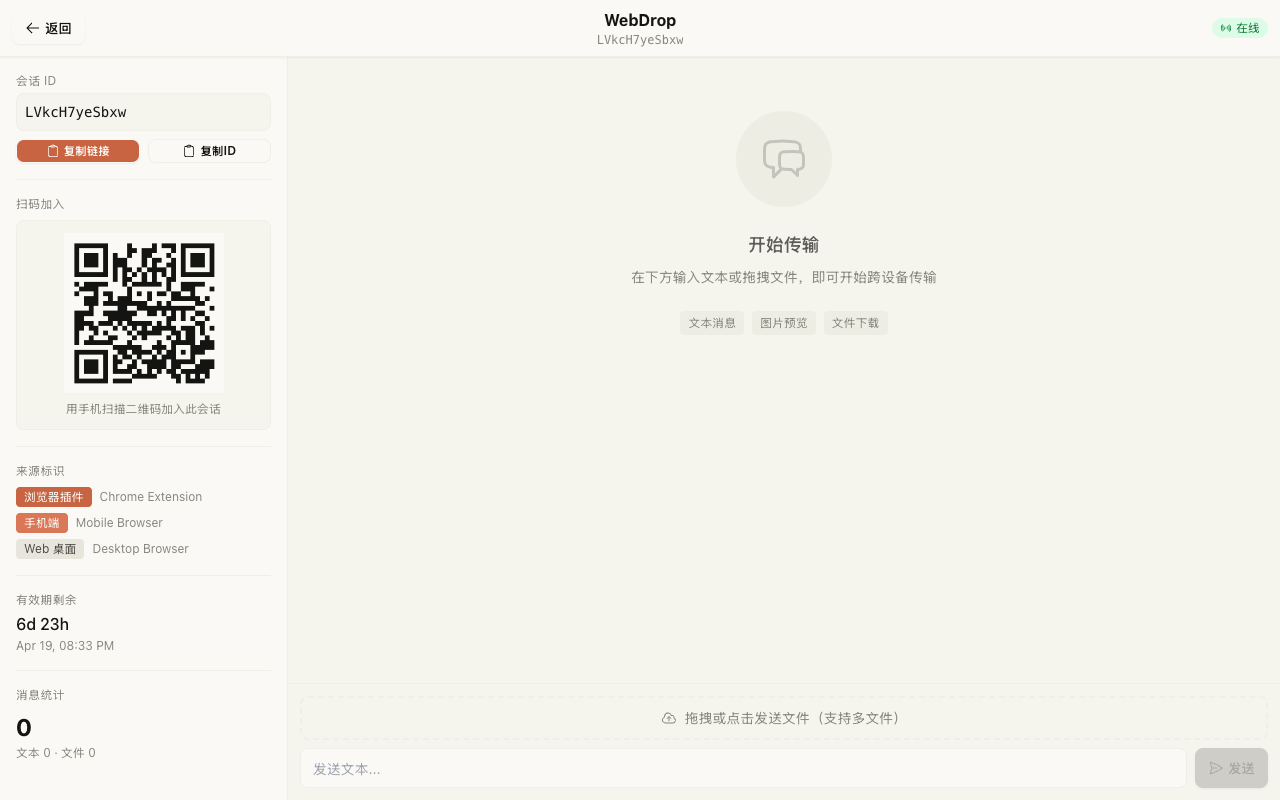
Written and reviewed by the WebDrop product teamExample WebDrop screens

What the QR code actually shares
The QR code encodes a session link. It does not contain your photo or document. Scanning opens a temporary room; the sender still needs to upload a file, and the receiver still needs to download it.
The link provides access to that room. Anyone who obtains it may access the session, so avoid posting its QR code in public screenshots. HTTPS protects traffic in transit but does not make possession of the link harmless.
Connect, upload, download
Open WebDrop on the sending device and create a session. Scan its code on the receiving device, then open the browser prompt. Confirm you are on webdrop0.com and that both screens refer to the same session.
Choose a file and wait until it is listed. Download it on the receiving device and open the saved copy. Closing a browser tab does not delete the session or revoke a shared link. The session expiry is measured from creation, not from the most recent scan.
The camera cannot recognize the code
Make the whole code and its surrounding border visible. Reduce glare, adjust screen brightness, clean the lens, and move the camera back until it can focus. A cropped screenshot or a code partially covered by another window may not scan.
If scanning is unavailable, enter the displayed session code in WebDrop’s join form or open the session link on the other device. This joins the same room; it does not create a separate transfer.
The code scans, but the room or file will not load
Once the browser opens the correct URL, QR recognition has succeeded. If the room is missing or expired, create a new session and share its new code. Retrying the same expired image will not restore the old room.
If the room opens, send a short text message. If that arrives, focus on file size, upload completion, and the receiver’s download. A scan problem and a storage or network error need different fixes.
Frequently Asked Questions
Can I scan the code on the same phone that displays it?
For this workflow, use the session link or code instead. A second device can scan the displayed QR code directly.
Related Guides
Transfer Files from Windows to iPhone: Download and Save
Send a file from your Windows browser to iPhone, locate the downloaded copy, and distinguish saving a document from saving a photo.
Transfer Files from Android to Mac in a Browser
Choose files on Android, receive them on Mac, and troubleshoot cloud-backed photos, interrupted uploads, and missing downloads.
AirDrop or WebDrop? Choose by Devices, Network and Storage
Choose a transfer method for Apple devices, Windows and iPhone, or Android and Mac. Compare the data path and practical limits before sending.
Try WebDrop
Create a temporary session and move files or text between your devices in seconds.
Start Transfer